

Generating and editing with a prompt
Most AI image work in Madoo happens in nodes built for one job — a product on a surface, a garment on a model, a background swapped — which carry their own expertise in their prompt. The nodes on this page are the general ones: they do what the words say. Text to Image makes a picture from a description. Image Transform changes a picture, or combines several, following an instruction. Image Fusion composes several products into one scene with a layout. And three vision nodes go the other way: they look at pictures and answer in words — a description, a category, a prompt.
Use them when no specialised node fits: a campaign illustration, a mood picture for a newsletter, a vector icon, a scene with three products, a photo moved to a new setting, a listing text written from the product itself. The common machinery — models, settings, presets, variants, price — is in How AI image steps work; this page is about what each node does and how to talk to it.
Text to Image
Section titled “Text to Image”Text to Image (ai/text_to_image) makes a picture from a prompt, with an optional negative_prompt — both can
come from inputs, so a prompt written by an earlier step (an AI, a template, a spreadsheet row) drives the picture.
| Setting | What it does |
|---|---|
aspect_ratio (preset) |
1_1, 4_5, 3_4, 16_9, 9_16: the frame. A model with frames of its own (MAI Image, Nano Banana, Kling) gets the nearest one it makes — 4_5 on MAI Image becomes 3:4 — and GPT Image the nearest image_size; set the model’s own aspect_ratio for a frame outside the five, such as 3:2 |
image_style (preset) |
31 styles, from photorealistic, product_photo and cinematic to watercolor, isometric, pixel_art, pop_art |
mood (preset) |
16 atmospheres: fresh, luxury, cozy, dramatic, minimalist, summer… |
quality (preset) |
draft, standard, high, ultra: steps and guidance for the models that use them |
variants |
1–4 proposals in one step |
seed |
the same seed with the same settings repeats a picture on the models that honour it |
The presets add their words after yours: “your prompt, in the style, quality, mood atmosphere, highly detailed”. They are a quick way to keep a series consistent; your prompt remains the instruction.
Which model. The default, Nano Banana 2, is a good all-rounder at 5 credits and follows long instructions well. Other models, chosen on the node, cover other needs:
| Need | Model | Credits |
|---|---|---|
| Many quick drafts | FLUX Schnell | 1 per megapixel (a 16:9 picture is 2) |
| Sharp pictures at any frame, text and QR codes included, at the lowest price | Muse Image (Meta), and Muse Image Edit for edits from up to 10 pictures | 1 per image, about 2.5 megapixels |
| Photorealistic pictures, about 1 megapixel | MAI Image 2.5 (Microsoft); MAI Image 2.5 Pro for the finest detail | 3–4; Pro 9–11 |
| The update of the default — better quality, prompt adherence and text — with frames from 8:1 to 1:8, a thinking level and web search for current facts | Nano Banana 2.1 (Google), and Nano Banana 2.1 Edit for edits from up to 14 pictures | 3 per image at 1K, 4 at 2K, 9 at 4K; thinking_level: high adds 2, web search 1 to 2; the edit up to 2 more for the pictures it reads |
| Wide or tall frames — 2:1 to 1:2, phone-screen 19.5:9 and 20:9 — at 1K or 2K | Grok Imagine Image 2.0 (xAI), and Grok Imagine Image 2.0 Edit for edits from up to 5 pictures | 4 per image at 1K, 5 at 2K (3 and 4 at low quality); the edit adds 1 to 4 for the pictures it reads |
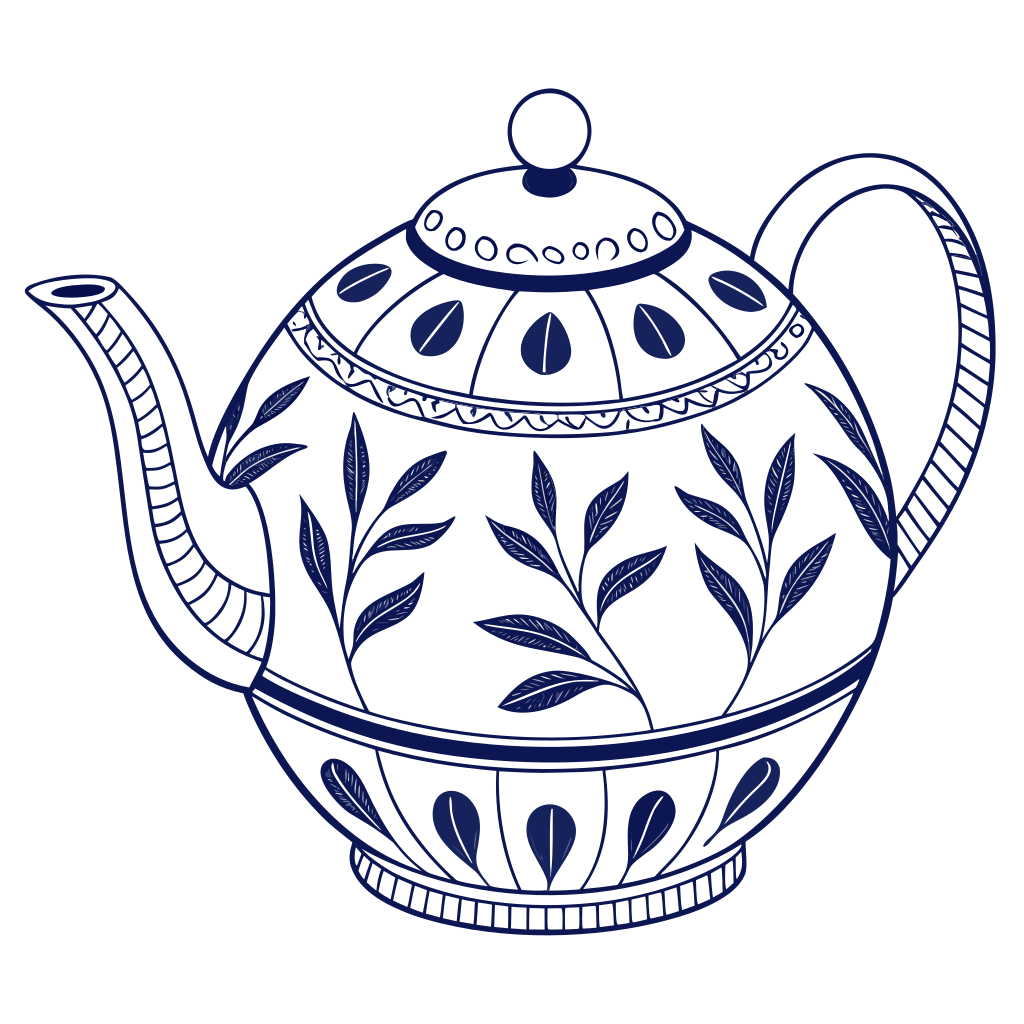
| A vector file — an icon, a logo sketch, an illustration for print | Recraft V3 with style: vector_illustration |
6 (3 × 2), delivered as SVG |
| Text inside the picture — posters, logos, packaging, signs | Ideogram v4.5, up to 2560 × 1440 at the same price; Ideogram v4.5 Edit for edits guided by up to 4 reference pictures | 2 low, 4 medium, 14 high per image; the edit also 1 at very low |
| The largest pictures | Nano Banana 2.1 or Nano Banana 2 at resolution: 4K, FLUX.2 by megapixel |
9 and 10; from 2 |
| Text in the picture, transparent backgrounds, sizes up to 4K | GPT Image 2.5 Flare (Sunburst for the finest detail, slower) | 3 at high quality, 1 at low, 7 at 4K |
| The top quality of a family | Nano Banana Pro, GPT Image 2, Recraft V4 Pro | 10–15 |
The whole list, with each model’s settings, is on the node’s model picker and in
GET /api/v1/node-types/ai/text_to_image/models.
Image Transform
Section titled “Image Transform”Image Transform (ai/image_transform) takes 1 to 14 pictures on images (images_0, images_1, …) and a
prompt, and returns one picture. The prompt is sent as you write it: no template, no added words. It is the node
for everything the specialised ones do not name — move a product to another setting, change the season of a
photo, put two products together, turn a sketch into a render, apply the look of one picture to another.
- The first picture is the main one; refer to the others by their order: “the vase from the second image”.
aspect_ratiodefaults tomatch_input, the proportions of the first picture; a ratio can be chosen instead.strengthandnum_inference_steps(advanced) matter only to the models that use them.- The default model reads up to 14 pictures. A model that reads only one stops the step before any charge when given more (How AI image steps work).
The model changes what you ask and keeps the rest: in the lab of How AI image steps work a museum teapot moved to a marble counter kept its shape and painting exactly. Say what must not change — “keep the product exactly as it is: its shape, its label, its proportions” — and it holds better.
Image Fusion
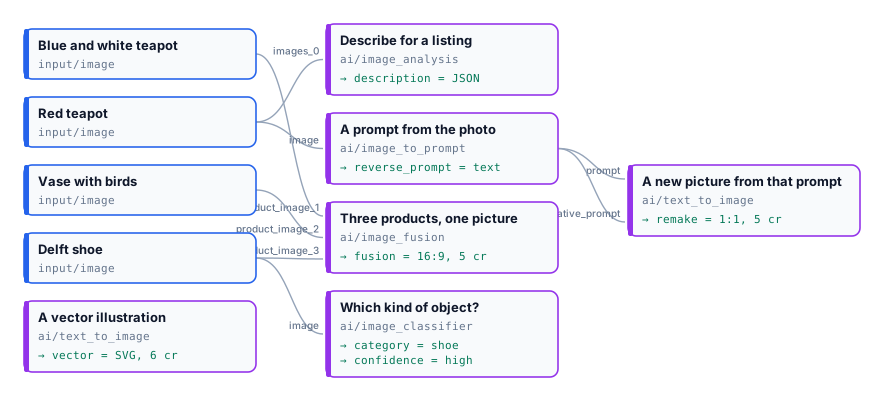
Section titled “Image Fusion”Image Fusion (ai/image_fusion) composes two to five products (product_image_1 … product_image_5) into
one scene, from settings rather than a free prompt: a layout (flatlay, lifestyle, grid, diagonal,
scattered, hero, stacked, circular, symmetrical, cascading), a mood, an aspect_ratio, a background
described in words and an optional custom_prompt added at the end. It is the quick way to make a “shop the look”,
a bundle, a gift set; for more than five pictures, or a composition you want to describe yourself, use Image
Transform.
Reading pictures: analysis, classification, prompts
Section titled “Reading pictures: analysis, classification, prompts”Three vision nodes read pictures and answer in text. They run on a language model — GPT-6 Luna by default, with Claude and Gemini among the others — and are priced by the words read and written: usually a few hundredths of a credit per picture.
| Node | Gives | Good for |
|---|---|---|
Image Analysis (ai/image_analysis) |
result in prose, or json when response_format is json_object |
Listing texts, alt texts, attributes (colour, material, style), a check of what is in a photo. Up to 20 pictures in one question; a system_prompt sets the role |
Image Classifier (ai/image_classifier) |
category from a list you give (categories, at least two, comma separated) and confidence (high, medium, low) |
Routing photos: product type, “usable or not”, which template to use. Add an other category for what fits none; if the model answers something outside your list the step fails with CATEGORY_NOT_IN_LIST rather than guess, and a doubtful case comes back with low confidence — see Reading pictures |
Image to Prompt (ai/image_to_prompt) |
prompt and negative_prompt describing the picture |
Making “one more like this”: connect its outputs to Text to Image; instructions steer what the description stresses |
The JSON of Image Analysis goes straight into data steps: a field for a template, a condition, a row of a catalogue. Ask for the keys you need and say how long each value may be.
Writing the instruction
Section titled “Writing the instruction”- Say what to keep before what to change. Models change more than asked when nothing tells them what is fixed.
- Name pictures by their order, and say what each one is for: “the first image is the product, the second only a reference for the light”.
- Describe like a photographer: the subject, the surface, the light and where it comes from, the framing, the background. Adjectives of quality (“stunning”, “8k”) add little.
- Put a text you need in the picture in quotes, and prefer a model good at text — or, better, add the text afterwards with Text on Image, in your own fonts.
- Ask for variants rather than rewriting the prompt: two proposals cost two pictures and differ more than two prompts usually do.
The lab
Section titled “The lab”The prompt lab uses four photos of the museum-shop collection: a blue and white teapot, a red teapot, a vase with birds and a Delft shoe.
| Step | What it gave | Credits |
|---|---|---|
Image Fusion, symmetrical, luxury, a green velvet shelf |
The three objects on a museum-shop shelf, each kept as it is | 5 |
| Image Analysis, JSON | object, colours, material, style, condition, alt_text (JSON) |
0.03 |
| Image Classifier, teapot / vase / shoe / chair | shoe, high |
0.01 |
| Image to Prompt → Text to Image | A detailed prompt, and from it a new red teapot in the same spirit | 0.03 + 5 |
Text to Image, Recraft V3 vector_illustration |
A navy line drawing of a teapot, delivered as SVG | 6 |
| Run | estimate 18, charged | 16.07 |
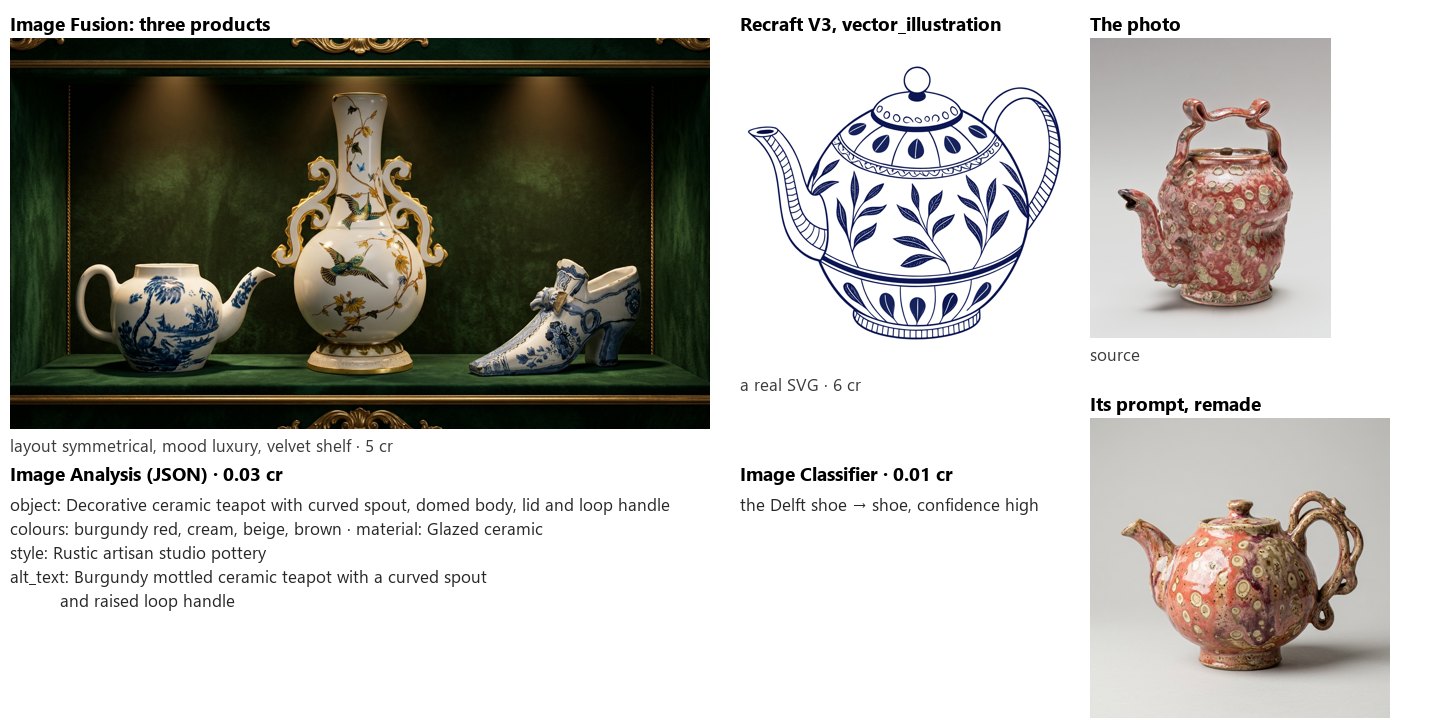
The vision steps are estimated generously — the estimate cannot know how long an answer will be — and charged by what was actually read and written, so the run cost less than its estimate. Run it again and the words change: the JSON keys stay, their values are the model’s.
node madoo-install-example.mjs lab-prompt-generation --api <your Madoo API URL> --key <key.json> --run --save generationLimits
Section titled “Limits”- Image Transform has no variants; run the step twice, or use a specialised node that has them.
- Image Fusion takes at most five products and no free prompt of its own beyond
custom_prompt. - A vector result comes only from Recraft’s vector styles; other models make pixels.
- Vision answers are text from a model: check a classification with
lowconfidence, and validate JSON before relying on a field (Schemas).
Photos: “Teapot”, John Bartlam, about 1765–69; “Teapot”, George E. Ohr, about 1897–1900; “Vase”, Greenwood Pottery Company, about 1884–93; “Shoe”, 1697, Delftware — The Metropolitan Museum of Art, New York (Open Access, public domain). The generated pictures were made by the models named, for this lab.