

Finding a subject in a picture
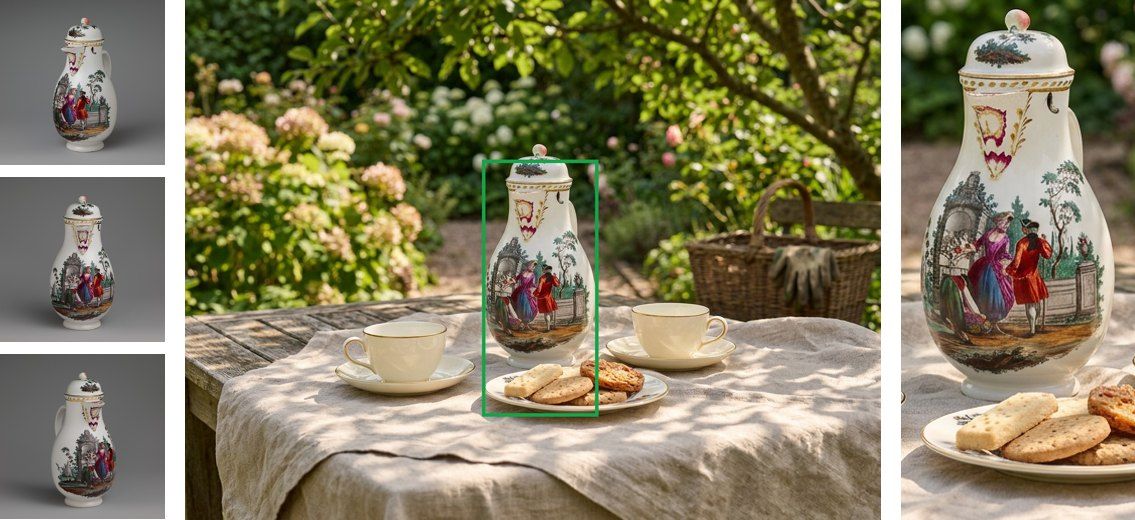
A generated scene puts the product where it belongs: a coffee pot on a garden table, between two cups and a plate of biscuits. To check that it is still this coffee pot — its painted figures, its gilded rim, its knob — a judge must look at the coffee pot, not at the garden. A judge shown the whole scene judges the whole scene: the perspective, the table, the cups that are not the product. A measurement of the whole scene measures mostly the background.
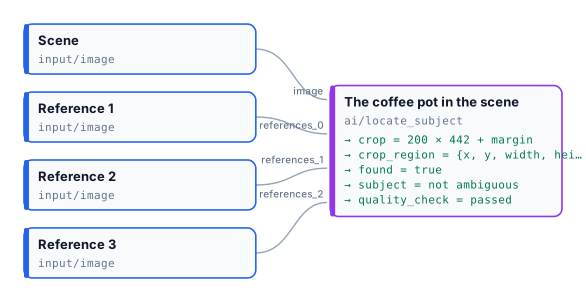
Locate Subject (ai/locate_subject) finds the subject first and gives it cut out. Connect the subject’s real
photos as references (or describe it), the picture to search as image, and read crop.
What it does, and what it does not
Section titled “What it does, and what it does not”- It finds this subject, not a similar one. A detector told “a coffee pot” picks the cups next to it; Locate Subject compares the scene with the references and takes the object they show.
- It finds, it does not judge. The subject is found even when the scene changed it — another colour, a logo added, a part missing, another viewpoint. Deciding whether it is still faithful is the job of the step after it, which now sees only the subject.
- It gives the whole object, with every part that sticks out (handles, spouts, knobs, legs, straps), and a margin around it.
- It does not identify anyone. With a person’s portrait as reference it finds where that person stands in a picture you made — give her role in the scene too (see People) — and says nothing about who she is.
Inputs and outputs
Section titled “Inputs and outputs”| Input | |
|---|---|
image |
the picture to search: a generated scene, a photo, a page |
references |
up to 6 pictures of the subject as it really is |
description |
the subject in words — alone, or with the references to tell it apart from similar objects |
At least one of references and description (locate_subject_missing otherwise).
| Output | |
|---|---|
crop |
the subject cut out, with its margin and aspect — ready for a judge or a measurement |
crop_region |
the rectangle {x, y, width, height} of the crop, in pixels of the upright picture — the format of Crop, Face Detect, Image Statistics |
found |
whether the subject is in the picture |
subject |
madoo.subject-location/v1: the subject’s box, the crop region, its share of the picture, the edges it touches, whether it was ambiguous and the other candidates, the model that answered |
quality_check |
for a Quality Gate: failed with NOT_FOUND; warning with AMBIGUOUS, TOUCHES_EDGE, TOO_SMALL |
How the crop is framed
Section titled “How the crop is framed”| Parameter | Default | |
|---|---|---|
framing |
subject |
subject: the subject alone with its margin — for a judge or a measurement. context: half the subject’s size more on every side — to judge how it stands in the scene: resting on the table, not floating, not covered |
margin |
0.08 | room on every side, as a fraction of the subject’s size |
aspect |
none |
none (the subject’s shape), or 1:1, 4:5, 3:4, 2:3, 9:16, 5:4, 4:3, 3:2, 16:9 |
The crop always lies inside the picture: with an aspect it is widened on its shorter side, moved inside the picture and reduced only when the picture is too small — the same rules as Face Detect.
The margin is worth keeping. The box is the model’s estimate: on the tall coffee pot of the lab, the box itself left the knob out by a few pixels; the crop, with its 8 % margin, has it.
When the subject is missing, ambiguous, small or cut
Section titled “When the subject is missing, ambiguous, small or cut”| Situation | What happens |
|---|---|
| The subject is not in the picture | found false; crop and crop_region are not provided — the steps that need them are skipped, the run goes on; quality_check failed NOT_FOUND. With on_not_found: fail the step fails (SUBJECT_NOT_FOUND) |
| Two objects could equally be the subject | the largest is taken; the others are in subject.candidates; quality_check warns AMBIGUOUS |
| The subject is very small (under half a percent of the picture) | found; quality_check warns TOO_SMALL: a judge will hardly see it |
| The subject is cut by the picture’s edge | found; quality_check warns TOUCHES_EDGE, with the edges in subject.touches_edges |
| The photo is turned by its EXIF orientation | the box and the crop are in the upright picture |
Each of these was checked on Dev with a picture made for it. A model’s answer that is not a usable box — not JSON,
out of scale, in the wrong order — fails the step as retryable (LOCATE_ANSWER_INVALID); a box is never invented.
Which model, and what it costs
Section titled “Which model, and what it costs”One call to a model that sees images: the references, labelled Reference 1, 2, …, then the picture, labelled Scene. Measured on 21 generated scenes — a silver teapot, a chair and a porcelain coffee pot, faithful and altered (another colour, a logo, a part missing) — with the box against the true one:
| Model | Found | Mean overlap with the true box | Credits per call |
|---|---|---|---|
| GPT-6 Luna (default) | 21/21 | 0.93 | about 0.01–0.03 |
| GPT-6.1 Sol | 21/21 | 0.96 | about 0.4 |
| Gemini 3.8 Flash | 21/21 | 0.95 | about 0.25 |
| Claude Opus 5.5 | 21/21 | 0.95 | about 0.8 |
Only the models that passed the measurement are offered. Luna is the default: it finds every subject at a small fraction of the others’ cost. Its boxes are a little looser on tall, thin objects (0.87 on the coffee pot); when the box itself must be tight — a crop without margin, a measurement on it — choose Gemini 3.8 Flash or GPT-6.1 Sol. A description alone, without references, works but is looser (0.79 on the teapot): give references whenever you have them.
Judging the crop
Section titled “Judging the crop”Connect crop as the first picture of Decide with a Model or
Image Analysis, and the references after it:
scene ──► Locate Subject ──► crop ──► Decide with a Model ◄── references ▲ (picture 1 the crop, picture 2… the real product) referencesBecause the crop may be missing, accept only when the subject was found: combine found and the judge’s verdict
with Combine Conditions (all), and score 0 when it was not found
(if(found, faithfulness / 3, 0) with Calculate). Otherwise, with no crop, the judge would
see the reference alone and could call it faithful.
This is the judge of I11: a pharmacy jar placed on an old pharmacy counter, with a second, blue and white jar on the shelf beside it. Locate Subject crops the right one, and Decide with a Model compares only that crop with the museum photo.
Inside the body of Repeat Until Accepted the same chain keeps a product, a person or a mark the same from one scene to the next: the generator makes the scene, Locate Subject finds the subject, the judge looks at the crop, the correction goes back to the generator.
People
Section titled “People”The same step finds a person: a brand’s model, a mascot played by a character, a recurring figure. Measured on ten generated scenes of one character among other people — a café, a busy street with twelve passers-by, a meeting, a picnic, a gym class, a wedding with another woman in the same dress — on the four models:
| Found | |
|---|---|
| she was kept, portrait only | 6/6 on every model, the box overlapping the true one by 0.85–0.92 |
| her hair or a detail of her face changed, portrait only | found by three models of four (Gemini 3.8 Flash says not found) |
| she was made thirty years older, or another woman, portrait only | the models point to the most similar other person (Gemini: not found) |
| the same two scenes, portrait and role | found on every model |
On a product, “the object that takes its place” is enough; on a person the model looks for the most similar face. So
give a person both her portrait and her role in the scene — the woman in the camel coat holding a cup, the man
at the head of the table — on description. The brief that made the scene already says it.
To judge her, do not ask a model whether she is “the same person”: models hedge on identity (Decide with a Model answered similar for most faces that were the same), and a workflow should not do face recognition. Frame her face with Face Detect inside the crop, and the face of the portrait the same way, and let Image Analysis rate what can be seen — features, skin, hair — from 0 to 10, with what differs in words. On ten faces, six kept and four changed (hair, freckles, age, another woman), features ≥ 6, skin ≥ 5, hair ≥ 3 accepted all six and rejected all four, at a hundredth of a credit. I12 is the complete example: a campaign of three scenes with the same model.
Use it with people who have agreed to it — a brand’s own models — or with characters made for the purpose. It finds where a person stands in a picture you made, compared with a portrait you supplied; it identifies no one, and is not for looking for people in pictures of others.
Measuring the crop
Section titled “Measuring the crop”The crop also goes to the deterministic measurements: Color Palette for the product’s colours, Image Statistics for its light, Remove Background to cut it out exactly and measure inside the cut-out — the checks of I09, now on a product that stands in a scene instead of on a studio backdrop.
The lab
Section titled “The lab”The lab is the picture above: three museum photos of a porcelain coffee pot (The Metropolitan Museum of Art, 198677, public domain) and a generated garden tea table. Locate Subject finds the coffee pot between the cups — the object a detector given only the words a coffee pot missed — in one call of about a hundredth of a credit.
node madoo-install-example.mjs lab-locate-subject --api <your Madoo API URL> --key <key.json> --run --save locatedLimits
Section titled “Limits”- The box is a model’s estimate, not a measurement; keep a margin, and use Remove Background on the crop when the exact outline matters.
- One subject per step. For several products in one picture, one Locate Subject per product, each with its own references.
- The orientation of a turned photo was checked with GPT-6 Luna; with the other models, prefer pictures saved upright.
- For faces, Face Detect is free and local; for the 80 everyday COCO classes (person, dog, chair, cup…), Instance Segment is free and local too. Locate Subject is for this subject.