

Image files and formats
An image that reaches a shop, a newsletter or a print shop has usually changed hands a few times: a supplier took it with a phone, someone cut the background away, a designer exported it for the web. Every hand leaves something in the file — a turn recorded in its metadata, a transparent area, a colour profile, a camera’s location, three megabytes where two hundred kilobytes were enough. A workflow that accepts such files has to know what it is holding before it does anything with it, and has to deliver a file that the next place accepts.
This page is about the file itself: how images get into a run and out of it, what the image nodes do when they read and write one, how to measure an image against the rules of a delivery, and the four nodes that prepare the delivery — format, weight, metadata, colour profile. Everything on this page runs on Madoo’s own workers and costs no credits; only the storage of the results counts.
Getting images in
Section titled “Getting images in”An image becomes an input of a run in one of three ways.
- Uploaded to the workspace, which returns a storage
path: in one request up to 250 MB, or in parts through a presigned upload — see Assets. Over MCP,create_asset_uploadandfinalize_asset_uploaddo the same. - Imported from a URL: Madoo downloads the file and stores it
(Assets §2,
import_asset_from_urlover MCP). - Passed at run time: an Image Input (
input/image) receives{"asset_path": "…"}for a stored file, or a public HTTPS URL as itsvalue(a JSON-encoded string), which Madoo downloads and checks before any node reads it (Executions).
When an address is produced inside a workflow — a field of a supplier’s JSON, an AI answer — Media from URL
(utility/media_from_url) turns that text into a typed image after downloading and checking it (up to 100 MB).
Images can be uploaded as JPEG, PNG, WebP, GIF, AVIF, HEIC/HEIF, TIFF, BMP and SVG. Madoo checks the bytes, not the name: a file whose content does not match its extension is refused. HEIC is what an iPhone camera saves: it is accepted as it is, read by the image and AI nodes, and every result made from it is a JPEG (see below). Most browsers other than Safari cannot show a HEIC file itself, so its preview in the editor may stay blank until a node has turned it into a JPEG. PSD and camera RAW files are not accepted — export them as JPEG, PNG or TIFF first. A PDF is a document, not an image: it has its own nodes.
What an image node reads
Section titled “What an image node reads”Every image node opens the file the same way, so the same rules hold for resizing, colour, filters and composition.
| The file | What the node works on |
|---|---|
| A phone photo stored sideways with an EXIF orientation tag | The picture turned upright, as a viewer shows it; widths, crops and text positions mean what you see, and the tag of the result says “upright” |
| JPEG, PNG, WebP, AVIF, TIFF, BMP | The picture, 8 bits per channel: a 16-bit PNG or TIFF is read at full depth and written at 8 bits |
| HEIC / HEIF (iPhone photos) | The picture, upright — the turn recorded in the file is applied; it continues as a JPEG, because HEIC cannot be written |
| SVG | The drawing turned into pixels, transparent where it has no fill, 2048 px on its longest side — a logo of 400×200 becomes 2048×1024 |
| An animated GIF or a multi-page TIFF | The first frame or page only; the result is a still |
| PDF, EPS, AI or PostScript | Nothing: the node fails and says that it reads raster images |
An image can be up to 20,000 pixels on each side. The whole picture is held in memory while a node works on it, so a 100-megapixel scan takes seconds per step where a 2-megapixel photo takes milliseconds; reduce it first with Resize when the delivery does not need the full size.
What an image node writes
Section titled “What an image node writes”A node writes its result in the format it received: a JPEG stays a JPEG through a crop, a WebP stays a WebP through a colour correction, and a HEIC becomes a JPEG, the one format change a node makes on its own. Two more exceptions follow from what the node makes:
- a node that creates transparency writes a PNG — cutting out a colour (Chroma Key), applying a mask, rounding corners or extending the canvas on a transparent background, a drop shadow, and the layouts of several images (Stack, Grid, Collage);
- a transparent picture written as JPEG or BMP, which have no transparency, is flattened on white, as a viewer would show it — never on black.
The name of each output is the name you give it; its type follows the bytes (image/jpeg, image/png,
image/webp, image/avif, …), so the next node and the person who downloads it know what they hold.
Getting images out
Section titled “Getting images out”Image Output (output/image) names a result of the run. Its format decides what is delivered:
format |
What you get |
|---|---|
original (default) |
The bytes of the result as they are — an SVG stays a vector file |
png |
A PNG, transparency kept |
jpg |
A JPEG at quality (1–100, default 90), transparency flattened on white |
webp |
A WebP at quality, transparency kept — usually the lightest of the three |
The result of an execution lists every output with a download link (get_execution_result over MCP, or
Executions). An output held back by a check comes back absent, with the reason.
What an image really is
Section titled “What an image really is”Image Info (image/image_info) opens an image and returns what is in it as JSON: width, height, format,
colorSpace (sRGB, Gray, CMYK), hasAlpha, density (the DPI written in the file, if any), depth (bits
per channel), quality (the JPEG quality it was saved at, 0 when the format does not say) and the EXIF tags. It
changes nothing, costs nothing, and its result can be read by the next steps — a decision on the orientation, a
calculation of a crop from the width.
Media Technical Info (media/technical_info) measures an image like a video or a sound, and can check it
against a media policy (madoo.media-policy/v1). For images the useful
rules are:
| Rule | Checks |
|---|---|
allowedMediaKinds: ["image"], allowedContentTypes |
an image, and in the format the delivery takes — WebP only, say |
minimumWidth, minimumHeight, maximumWidth, maximumHeight |
large enough for a product zoom, not larger than a platform accepts; orientation too |
maximumSizeBytes |
the weight a page, a marketplace or an email can carry |
The result is a quality_check: passed or failed, and one violation per broken rule with what was expected and what
was found (MINIMUM_WIDTH: expected 1200, actual 900).
Hold an image back
Section titled “Hold an image back”A check stops nothing on its own. Connect its quality_check to a Quality Gate (utility/quality_gate), the
image to the gate’s value, and the delivery to the gate’s value output: with mode: route an image that fails
comes back absent with a report and the run completes; with fail the run stops. The gate is described in
Quality checks; the same preflight for video is in
Media files and preflight.
Put the check before a paid step — an upscale, a background replacement — so that a file too small or of the wrong kind never costs credits, and before a delivery, so that a shop never rejects it.
Deliver it: format, weight, metadata, colour
Section titled “Deliver it: format, weight, metadata, colour”| Node | What it does | Good to know |
|---|---|---|
Convert Format (image/convert) |
Writes PNG, JPEG, WebP, GIF, TIFF or BMP at a quality |
Transparency to JPEG or BMP is flattened on white. AVIF and HEIC cannot be written |
Compress (image/compress) |
Lowers the weight in the same format; maxFileSize sets a target in bytes |
To reach the target it lowers the JPEG or WebP quality by 10 at a time, down to 5; it never reduces the size in pixels. For PNG “quality” is compression effort, not loss, so a PNG seldom gets much lighter. A missed target is not an error — check the weight with a policy (maximumSizeBytes) |
Strip Metadata (image/strip_metadata) |
Removes EXIF, IPTC and XMP: camera, date, location | preserveColorProfile: true keeps the ICC profile, so colours do not shift. Compress strips metadata by default too |
Color Profile (image/color_profile) |
Converts to sRGB, Adobe RGB or CMYK (US Web Coated SWOP) with a rendering intent (perceptual, relative, saturation, absolute) |
An image without a profile is taken as sRGB. The result keeps its format, so for print give it a JPEG or TIFF; the web and the AI nodes want sRGB |
A file that goes to the web is usually fitted in a size (Resize, mode: fit), stripped
of its metadata, and written as WebP; one that goes by email as a JPEG under a weight; one that goes to a
printer is converted to CMYK. The lab below does the first two, and measures what it delivers.
The lab
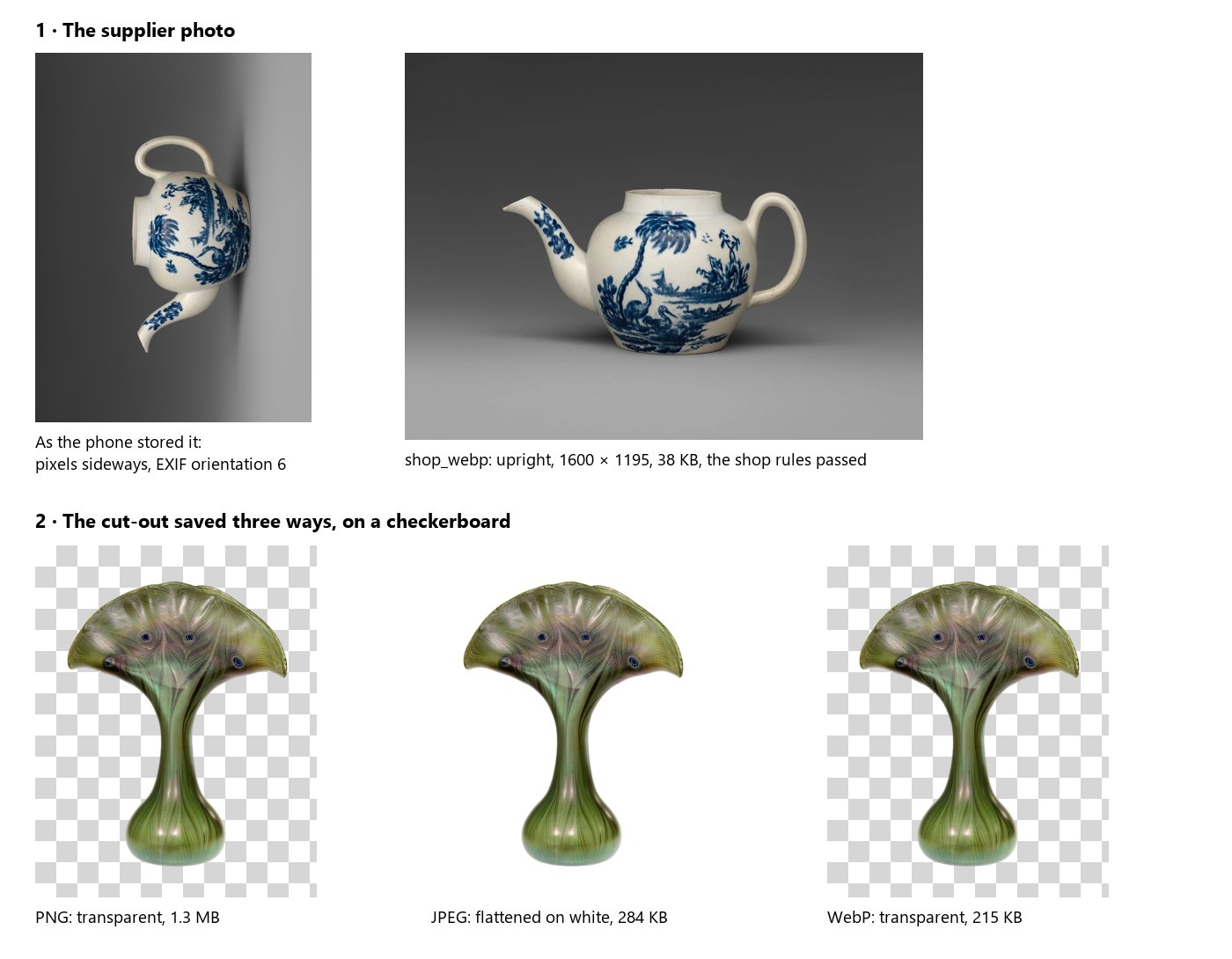
Section titled “The lab”The image files lab takes two files a shop receives from a supplier. The supplier photo is a teapot taken with a phone: 2000×1494, stored sideways with orientation 6 in its EXIF, and a software tag. The cut-out product is a vase whose background has already been removed: a PNG with transparency.
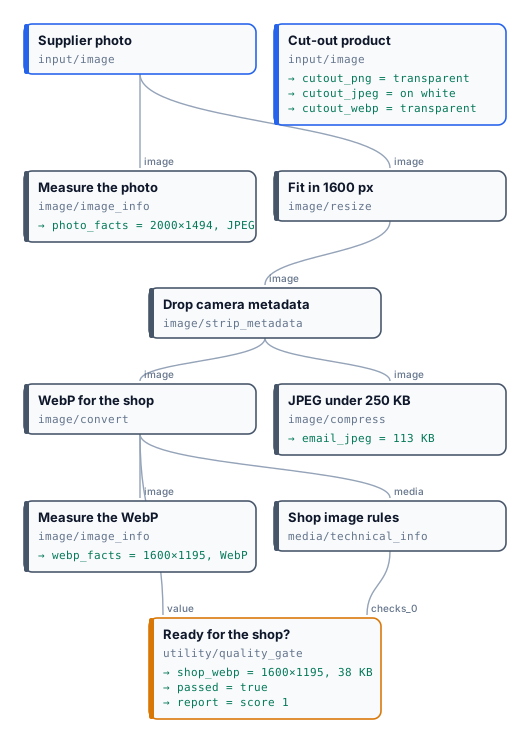
- Measure the photo reports 2000×1494: the picture is read upright, although its pixels are stored sideways.
- Fit in 1600 px → Drop camera metadata (keeping the colour profile) → WebP for the shop at quality 82: 1600×1195, 38 KB.
- Shop image rules requires a WebP at least 1200×800 and at most 400 KB; Ready for the shop? releases it. The check measures what is delivered, not what arrived: Fit also enlarges a smaller picture, so a photo of 900 px would pass at 1600 px, blurred. To refuse small originals, check the input before resizing.
- JPEG under 250 KB makes the email copy from the same fitted picture: 113 KB at quality 85, no second pass needed.
- The cut-out is saved three times: PNG and WebP keep the transparency, the JPEG is flattened on white.
The run costs 0 credits. The measured facts of the WebP are in
result-webp-facts.json and the gate’s report in
result-report.json.
node madoo-install-example.mjs lab-image-files --api <your Madoo API URL> --key <key.json> --run --save shop-filesLimits
Section titled “Limits”- No PSD or RAW upload; no HEIC output (a HEIC continues as JPEG) and no AVIF output from Convert Format.
- Document templates take PNG, JPEG, WebP, GIF and SVG: pass an iPhone photo through any image node first — Resize, say — and give the template its JPEG. The AI nodes need nothing: they convert it themselves.
- 8 bits per channel: 16-bit sources lose depth.
- Animated GIFs and multi-page TIFFs are reduced to their first frame; for a GIF from a video, see Editing video.
- SVG is turned into pixels at 2048 px on the longest side before any image node; to deliver the vector file, give it
straight to Image Output with
format: original. - Compress does not resize: when a weight must be reached, fit the picture first.
Photos: “Teapot”, John Bartlam, about 1765–69, soft-paste porcelain, and “Vase”, Louis C. Tiffany, 1893–96, Favrile glass, The Metropolitan Museum of Art, New York (Open Access, public domain). The phone orientation and the cut-out were prepared for this lab — the background removed with Madoo’s Remove Background.