

Geometry
Every channel wants a product in its own shape: a marketplace a white square with the product filling most of it, a story a tall 9:16 frame, a newsletter a strip of 600 by 200, a link preview 1200 by 628. The same photo cannot go everywhere as it is, and each change of shape asks one question: when the picture and the frame do not have the same proportions, what gives way — part of the picture, the proportions, or empty space around it?
The geometry nodes answer that question explicitly, one mode at a time. They run on Madoo’s workers, cost no credits and give the same result every time. This page explains the modes, the nodes that cut, frame and turn a picture, and the units they accept; the lab makes one product ready for five channels and shows what each choice keeps and what it loses. When the missing space must be invented rather than filled with a colour — a landscape from a portrait photo — that is a job for the AI nodes described in AI edits and utilities.
Resize: four ways to meet a frame
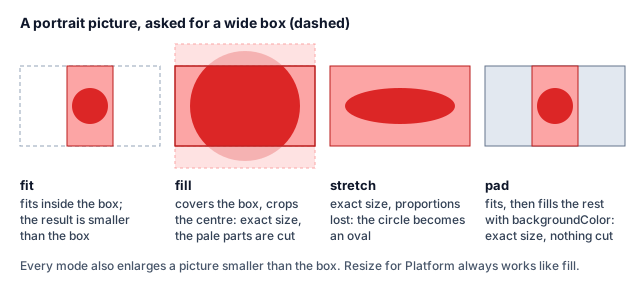
Section titled “Resize: four ways to meet a frame”Resize (image/resize) takes a width, a height or both. With one of them it scales in proportion. With both,
its mode decides what happens when the proportions differ:
mode |
Size of the result | What gives way |
|---|---|---|
fit (default) |
Inside the box: 1600×1600 on a landscape photo gives 1600×1195 | Nothing — but the result is not the box size |
fill |
Exactly the box | The parts outside it, cut from the centre |
stretch |
Exactly the box | The proportions: the picture is distorted |
pad |
Exactly the box | Nothing is cut: the picture fits, and bands of backgroundColor fill the rest (transparent by default, which makes a PNG) |
Two rules apply to every mode. The crop of fill is always centred — it does not know where the product is; if
the subject is off-centre, crop it yourself first. And a picture smaller than the box is enlarged, which blurs
it: to make a small photo bigger with real detail, use Upscale (AI, paid) before resizing.
Turn on Never Enlarge (never_enlarge) to only ever shrink: a picture that already fits is returned exactly as it
was stored — not re-encoded, so a JPEG loses nothing — and in the other modes nothing is scaled up (fill still cuts
to the box where the picture is larger, pad still adds the canvas). It is the setting for a batch of mixed sizes:
the large photos come down to the size, the small ones stay sharp.
Platform sizes
Section titled “Platform sizes”Resize for Platform (image/resize_for_platform) knows ten sizes and writes the result as JPEG, PNG or WebP
(format, quality):
platform |
Size | platform |
Size | |
|---|---|---|---|---|
instagram_square |
1080 × 1080 | linkedin |
1200 × 627 | |
instagram_story |
1080 × 1920 | banner_web |
1920 × 480 | |
tiktok |
1080 × 1920 | billboard |
1920 × 1080 | |
facebook_post |
1200 × 630 | email_header |
600 × 200 | |
twitter_post |
1200 × 675 | pinterest |
1000 × 1500 |
It always works like fill: exact size, centre crop. That is right for a photo with room around the subject,
and wrong for a product that fills its frame — in the lab the story cuts the teapot’s spout and the email header cuts
its top and bottom. When nothing may be lost, use Resize with mode: pad and the platform’s size, or Place on Canvas
below.
| Node | What it does | Good to know |
|---|---|---|
Crop (image/crop) |
Keeps the rectangle x, y, width, height — or the one wired into Region |
In pixels of the upright picture, from the top-left corner. Connect Region to cut what another step found: the measurements of Measure Subject (the subject’s box), the best_region of Image Detail (the area to look at closely), the instances of Instance Segment (the box of the first selected person or object), the crop_region of Face Detect (a head shot framed around a face, in the shape you choose), or any {x, y, width, height}. With Region, a rectangle beyond the picture fails the step (REGION_OUT_OF_BOUNDS), or is cut to the picture with On Out Of Bounds clip; the output region says what was cut. To compute a rectangle from the picture’s size, read it with Image Info and calculate |
Auto Crop (image/auto_crop) |
Trims a uniform border | With autoDetect the border colour is the top-left pixel — transparency on a cut-out, white on a studio shot; tolerance (0–100 %) accepts near colours; margin adds space back in marginColor |
| Node | What it does | Good to know |
|---|---|---|
Place on Canvas (image/place_on_canvas) |
Fits the picture, centred, on a canvas of canvasWidth × canvasHeight in backgroundColor, with padding |
Padding in pixels is per side; in percent it is the total per axis — 16 leaves 8 % on each side, so the product fills 84 % of the width or of the height. paddingTop/Right/Bottom/Left override one side. Always a PNG |
Extend Canvas (image/extend_canvas) |
Adds top, right, bottom, left space without resizing |
In % each side is a share of the picture’s own width or height. Transparent by default, which makes a PNG |
Round Corners (image/round_corners) |
Rounds the corners by radius |
In % of the shorter side, at most half of it. Transparent corners make a PNG; give a backgroundColor to keep the format |
A marketplace listing is a two-step recipe: Auto Crop to the product’s edges, then Place on Canvas on white with a percentage padding. Because the product is trimmed first, the margin is the same whatever empty space the supplier left around it.
Turn and straighten
Section titled “Turn and straighten”| Node | What it does | Good to know |
|---|---|---|
Rotate (image/rotate) |
Turns by angle degrees |
The canvas grows to hold the turned picture; the corners are filled with backgroundColor. Phone photos are already turned upright when any image node reads them, so autoOrient is not needed |
Flip (image/flip) |
Mirrors horizontal, vertical or both |
Mirroring a product with text or a logo reverses them |
Deskew (image/deskew) |
Straightens a small tilt — a scanned page, a photographed label | Automatic; threshold (0–100 %) sets how strongly it reacts |
Perspective (image/perspective) |
Moves the four corners to new places | Each corner is a fraction of the width and height (0–1); the defaults leave the picture unchanged |
Resize, Extend Canvas, Place on Canvas and Round Corners accept px, %, in, cm and mm (unit,
canvasUnit, paddingUnit). Inches, centimetres and millimetres are turned into pixels with the density written in
the image, or 72 DPI when it has none — so “10 cm” is 283 pixels on a web image and 1181 on a 300-DPI scan. When
a print size in centimetres must come out at a given resolution, Perfect Size (ai/perfect_size)
takes the size and the DPI together.
The lab
Section titled “The lab”The geometry lab makes one product ready for five channels, from two files: the cut-out vase of Image files and formats and a product photo of a red teapot on a grey studio background, 1286×1600.
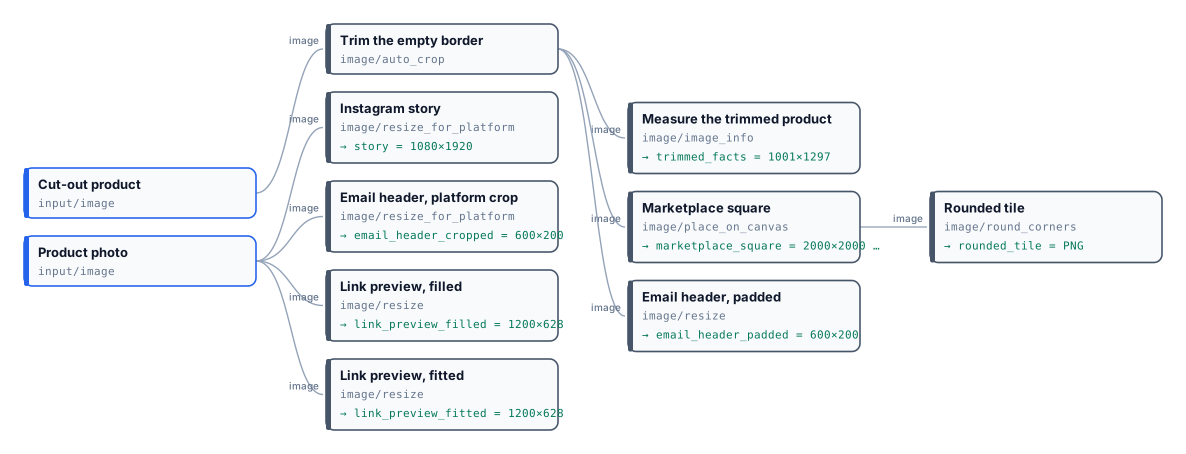
- Trim the empty border takes the vase from 1280×1600 to its edges, 1001×1297.
- Marketplace square: 2000×2000, white,
padding: 16%: the vase fills 84 % of the height, whatever empty space the cut-out had. Rounded tile rounds it by 6 % into a PNG with transparent corners. - Email header, padded: 600×200 in the brand’s cream, the whole vase — small, because a tall product in a wide strip always is.
- The story and email header presets crop the teapot photo from the centre: the spout goes in the first, the top and bottom in the second.
- The link preview twice at 1200×628:
fillcrops the photo to the frame;padkeeps it all and adds grey bands on the sides — visible, because a flat colour does not match a studio gradient.
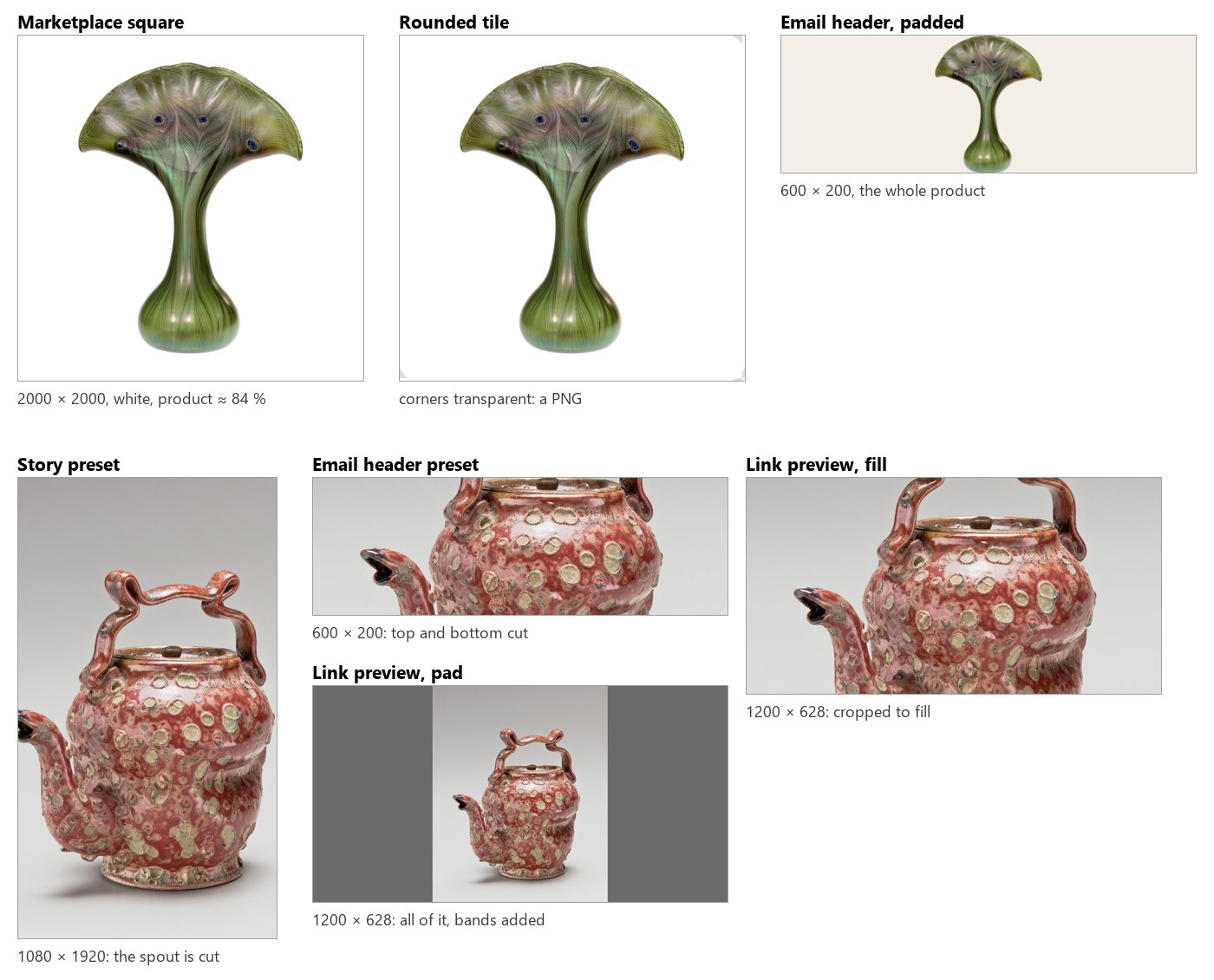
The run costs 0 credits. When the bands of a padded picture must look like the photo rather than a flat colour, the space has to be generated: AI edits and utilities extends a picture with outpainting.
node madoo-install-example.mjs lab-image-geometry --api <your Madoo API URL> --key <key.json> --run --save channelsLimits
Section titled “Limits”- Every resize mode enlarges pictures smaller than the target, without adding detail, unless Never Enlarge is on.
- The crops of
filland of the platform sizes are always centred; there is no gravity or subject detection. To crop around the subject, wire Measure Subject’smeasurementsinto Crop’s Region. - Place on Canvas always centres; for another position, extend the canvas side by side or use Overlay on a canvas of your own.
- Platform sizes are the ten above; any other size is Resize with a
width, aheightand a mode.
Photos: “Vase”, Louis C. Tiffany, 1893–96, Favrile glass, and “Teapot”, George E. Ohr, about 1897–1900, earthenware, The Metropolitan Museum of Art, New York (Open Access, public domain).