

AI edits and utilities
Most photos are not ready: the product stands on a cluttered table, carries a price sticker, was taken at 600 pixels, or is square when the channel wants 9:16. The AI edit steps fix those. Unlike the generative nodes, they are meant to change as little as possible: the product stays, only what is asked goes or is added.
They are the AI counterpart of the deterministic steps. When a deterministic step can do the job — crop, resize, extend the canvas with a colour — prefer it: it costs nothing and gives the same result every time. Use the AI steps when pixels must be invented: a background behind a removed object, detail that the small photo did not have, more of the scene beyond its edge.
The steps
Section titled “The steps”| Step | Takes | Returns | Default model | Credits |
|---|---|---|---|---|
Remove Background (ai/remove_background) |
image |
A cut-out on transparency, the same size | BiRefNet V2 | 1 |
Upscale (ai/upscale) |
image |
The picture 2 or 4 times larger | Topaz | 5 |
Text Removal (ai/text_removal) |
image |
The picture without its text — no mask needed | Text Removal | 2 |
Object Removal (ai/object_removal) |
image, mask |
The masked area filled with what surrounds it | FLUX.1 Pro Fill | 2 |
Inpainting (ai/inpainting) |
image, mask, prompt |
The masked area repainted as the prompt describes | FLUX.1 Pro Fill | 2 |
Outpainting (ai/outpainting) |
image |
More of the scene on one or more sides | Image Outpaint | from 2 |
Reframe (ai/reframe) |
image |
The same photograph in a new frame | Nano Banana 2 Edit | 5 |
Perfect Size (ai/perfect_size) |
image |
An exact size, enlarging and extending as needed | Topaz + Image Outpaint | see the estimate |
Other models can be chosen on each step — Creative and Clarity Upscaler (2 credits), Ideogram V3 Edit and Reframe
(4), FLUX.2 Dev Edit (2) among them; the list and prices are on the step’s model picker and in
GET /api/v1/node-types/{category}/{name}/models. The estimate gives the price of a run before it starts.
Remove Background
Section titled “Remove Background”A clean cut-out with transparency, the size of the photo: the first step before placing a product on a new
background, a canvas or an Overlay. refine_foreground (on by default) cleans the colours at the
edges of the subject — hair, fur, glass — so no trace of the old background remains.
To put the cut-out on white or a colour, use Place on Canvas or save it as JPEG, which puts white under transparency (Files and formats).
Upscale
Section titled “Upscale”scale_factor is 2x or 4x; upscale_mode tells the model what the picture is — product, packshot, photo,
portrait, illustration, text, old_photo, low_quality and a dozen more — so it sharpens what matters for that
kind of picture. Topaz costs 5 credits whatever the size and factor; the creative upscalers cost 2 and
invent more detail (creativity, 0–1), which is welcome on a texture and risky on a label.
Upscale a crop, not only a whole picture: a detail cut out of a large photo and enlarged four times is how a product page gets its close-up.
Removing things: Text Removal, Object Removal, Inpainting
Section titled “Removing things: Text Removal, Object Removal, Inpainting”Text Removal finds the text by itself — a price, a caption, a watermark — and removes it: nothing to prepare.
Object Removal removes what a mask covers and fills it with the surroundings. Inpainting repaints the
masked area with what the prompt describes: “a ceramic cup”, “green moss”. inpaint_mode adds a direction —
object_removal, contextual_fill, texture_continuation, repair, object_replacement, generative_fill,
creative_enhancement, product_staging.
Write the prompt as a description of what should be there, not as an instruction: these models paint what the words describe, and an instruction can come back painted as a sign. “The wooden table continuing, empty” works; “remove the sticker” does not.
Making a mask
Section titled “Making a mask”A mask is a picture the size of the photo: white where the change goes, black everywhere else. Madoo has no step that draws one: make it in any image editor and upload it as an input, like the lab’s. Make the white area a little larger than the object, so its edges and shadow go too; for the same area on a whole batch of photos of one size, one mask serves them all.
Adding space: Outpainting, Reframe, Perfect Size
Section titled “Adding space: Outpainting, Reframe, Perfect Size”Outpainting adds scene beyond the edges: direction — all, left, right, up, down, horizontal,
vertical — and amount — small, medium, large, extra_large — or exact expand_pixels (up to 700) or
zoom_percentage (up to 50). A prompt can say what the new area holds.
Reframe gives the photograph a new frame — 1:1, 16:9, 9:16, 4:3, 3:4 — keeping the subject exactly as
it is and adding only surroundings. It is the quickest way from a product photo to a story or a banner.
Perfect Size delivers an exact size — width and height in px, mm, cm or in at a dpi — enlarging the
picture with an upscaler when it is too small and extending it with an outpainter when the proportions differ, so the
product is never cropped or stretched. It is the step for print formats and for marketplaces with fixed sizes.
When only the canvas is missing and a plain colour around the picture is acceptable, Extend Canvas or Place on Canvas do it for nothing.
The size of the result
Section titled “The size of the result”AI edit models choose the size of what they return, and it is not always the size you sent:
| Step (default model) | In the lab | Result |
|---|---|---|
| Remove Background, Upscale | 867 × 1000; 200 × 150 × 4 | Same size; exactly 2 or 4 times |
| Object Removal | 900 × 675 | 896 × 672 — sides rounded to a multiple of 16 |
| Text Removal | 900 × 672 | 1184 × 880 — enlarged, same proportions |
Outpainting horizontal, medium |
900 × 672 | 1088 × 672 |
Reframe 9:16 |
900 × 675 | 768 × 1376 |
When the next step needs an exact size — a template, a collage, a marketplace — end with Resize or Resize for Platform.
The lab
Section titled “The lab”The AI edits lab runs six edits on four photos of the museum-shop collection. The text and the sticker are added by the workflow itself, with Text on Image and Overlay, so the removal can be seen; the mask of the sticker is a file of the lab.
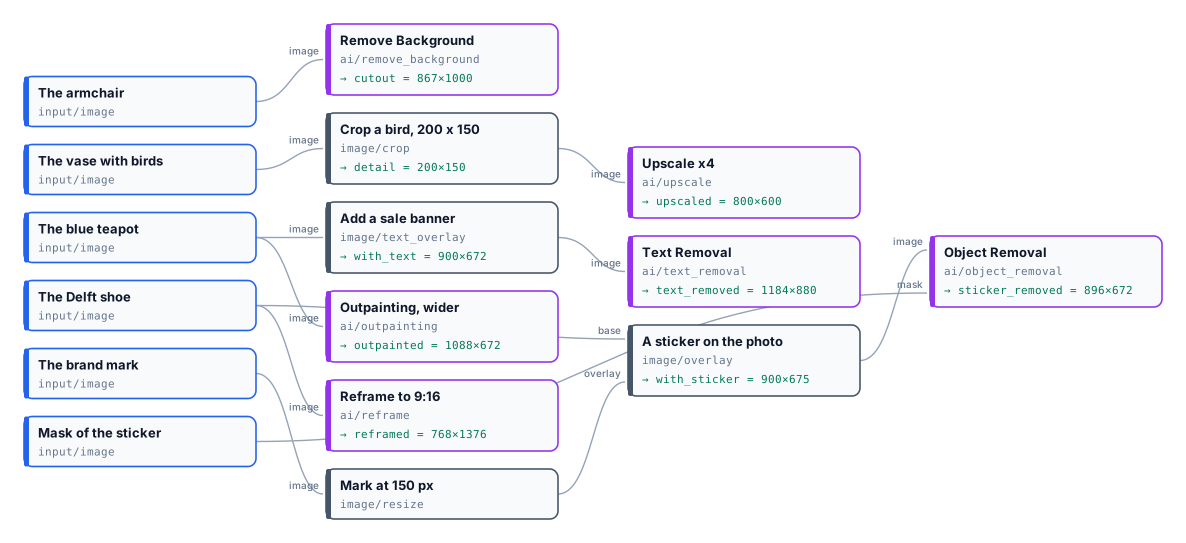
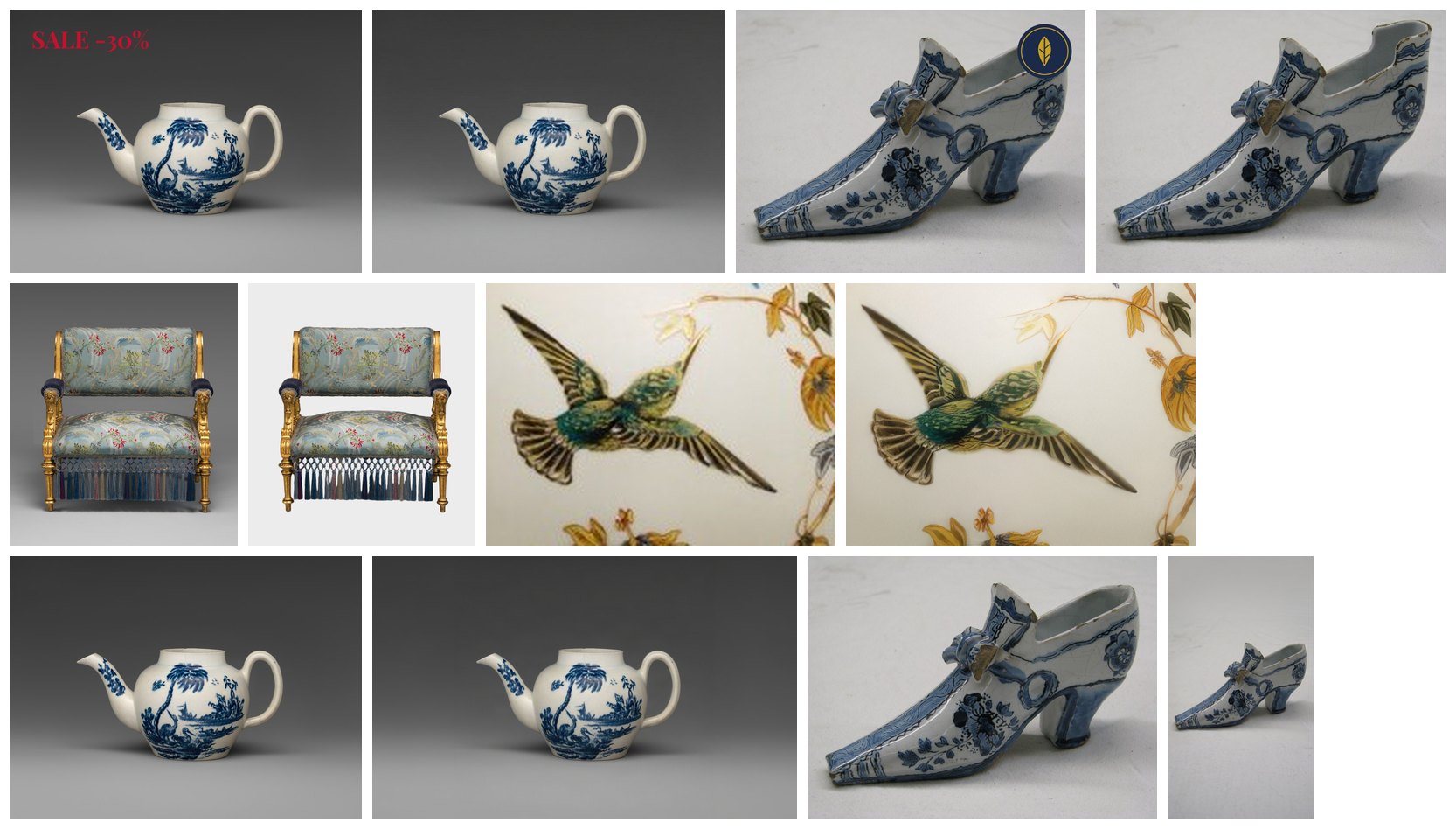
Six edits, 17 credits — 1 + 5 + 2 + 2 + 2 + 5 — estimate equal to the charge. In every picture the object is the one of the photo: the edits changed only what they were for.
node madoo-install-example.mjs lab-ai-edits --api <your Madoo API URL> --key <key.json> --run --save editsLimits
Section titled “Limits”- No step draws a mask; bring one as an input.
- The size of an AI edit’s result is the model’s (see the table); resize when it matters.
- Text Removal removes all the text it finds; to keep some, use Object Removal with a mask instead.
- A generative model can still improvise in the area it paints: check a removed object’s place, and a reframed picture’s new edges.
Photos: “Teapot”, John Bartlam, about 1765–69; “Shoe”, 1697, Delftware; “Armchair”, Herter Brothers, about 1875; “Vase”, Greenwood Pottery Company, about 1884–93 — The Metropolitan Museum of Art, New York (Open Access, public domain). The edited pictures were made by the models named, for this lab.