

Compositing and branding
A product photo becomes a piece of communication when something is added to it: the brand’s mark in a corner, the name and the price, a frame in the house colour, a “proof” stamp before the client approves it. Done by hand in an editor this is quick for one picture and endless for a catalogue; in a workflow it is a chain of nodes that places every element at the same spot, in the same fonts, on every picture — and that reports when a longer name no longer fits.
The compositing nodes work on layers and transparency. Some add a layer (a logo, a text, a watermark, a shadow), some make transparency (a mask, a colour key), and all of them run locally at no credit cost. Separating a product from a real background — not a flat colour — is a job for AI: see AI edits and utilities.
Put a logo or a picture on top
Section titled “Put a logo or a picture on top”Overlay (image/overlay) places the overlay image on the base image at its own size:
anchorpicks the reference point —topLeft,topCenter,topRight,centerLeft,center,centerRight,bottomLeft,bottomCenter,bottomRight;xandyare margins from the anchored edges, in pixels:bottomRightwith 40 and 40 leaves 40 px to the right and below; on a centred axis they move the overlay right and down;opacity0–100.
The overlay is not resized: size a logo first with Resize (mode: fit), usually to a share of
the base width. A logo with transparency (PNG, WebP, SVG) keeps it.
Blend (image/blend) combines a blend layer with the base the way photographers do: over, multiply
(darkens: a texture, paper grain), screen (lightens: light leaks), overlay, soft_light, hard_light,
darken, lighten, color_dodge, color_burn, difference, exclusion, at an opacity. The layer starts at the
top-left corner at its own size, so give it the size of the base first.
Text on the picture
Section titled “Text on the picture”Text on Image (image/text_overlay) sets text with the same typography engine as documents and video:
- an exact font: a system font (Inter, Playfair Display, Montserrat, Roboto, Lora…) or one uploaded to the
workspace, referenced by version and fingerprint, so a card renders the same today and next year; if the font is
not available the node fails (
FONT_MAPPING_REQUIRED) rather than silently using another; - a size fixed in pixels or relative to the picture, with a minimum and maximum, and a layout: anchor (nine
positions), alignment, maximum width and lines, a safe area kept free at the edges, and what to do when the
text does not fit —
fit(shrink down to the minimum),cliporfail; - colour, opacity, letter and line spacing, an outline, a soft shadow and a readability box.
Give it one text or up to 32 layers, each with its own style — an eyebrow, a title and a price in one pass. The
text can come from an input at run time (a product name from a feed). In layers, write the words that come from other
steps as placeholders — {{product}}, from {{price}} — and each name becomes a text input of the node, filled when
it runs: the layout stays in the layers, the words arrive on the ports. Every run returns a layout_report: the
font size used, the lines, the box of each layer, and whether it had to be shrunk, clipped or broke the safe area.
The full reference of the style is on the node (get_node_type); the same concepts for video are in
Typography on video.
Marks, frames and shadows
Section titled “Marks, frames and shadows”| Node | What it does | Good to know |
|---|---|---|
Watermark (image/watermark) |
A text or an image (watermarkImage) once in the centre (single) or repeated across the picture (grid, or diagonal turned by rotation) |
opacity 0–1; spacing is the gap between repeats. With both a text and an image, the image wins. The text uses a font by family name among those installed on the worker (Arial by default): for a brand font, use Text on Image |
Border (image/border) |
A frame of width pixels in color |
The picture grows by twice the width |
Drop Shadow (image/drop_shadow) |
A soft shadow under a cut-out, offset by offsetX, offsetY, blurred by blurRadius, in color (with alpha, #00000066) |
Works on transparent pictures — the shadow follows the shape. The result is a PNG |
Make transparency
Section titled “Make transparency”| Node | What it does | Good to know |
|---|---|---|
Apply Mask (image/mask) |
Keeps the picture where the mask is opaque or white |
The mask is stretched to the picture’s size: square the picture first for a circle (Resize, fill). invert swaps kept and removed; feather softens the edge. The result is a PNG |
Chroma Key (image/chroma_key) |
Makes one colour transparent — a green or blue screen | keyColor, tolerance (0–100 %: how far a colour may differ and still go), feather (softens only the edge of the key). There is no spill suppression: a green reflection on the product stays green |
Alpha Set (image/alpha_set) |
set adds an alpha channel, extract returns it as a black-and-white mask, remove flattens the transparency onto backgroundColor |
extract is useful to reuse the shape of a cut-out as a mask |
A flat, even background — a green screen, a white studio sweep — can be keyed locally. A real background, hair, glass, a shadow on the floor need Remove Background (AI, about 1 credit).
The lab
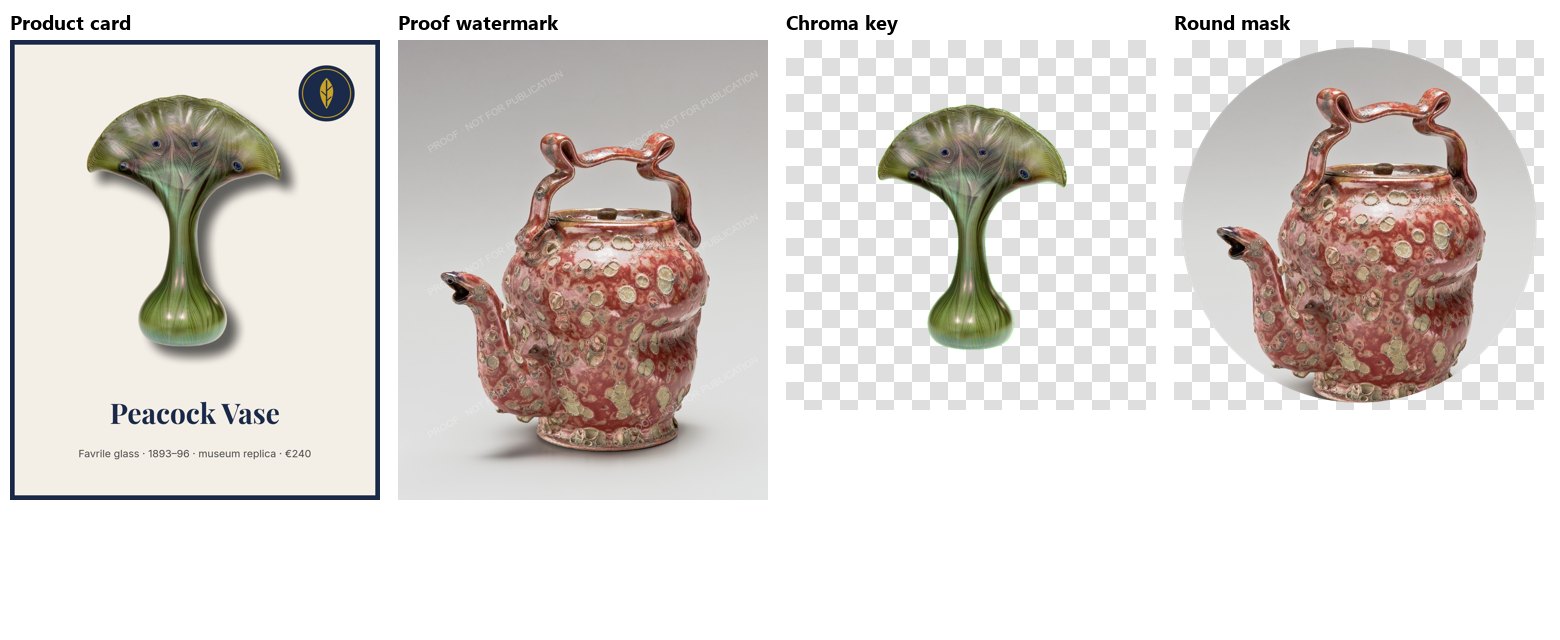
Section titled “The lab”The compositing lab builds four results from the cut-out vase of the earlier labs, a brand mark drawn as an SVG, the red teapot photo, the same vase on a green screen and a round mask.
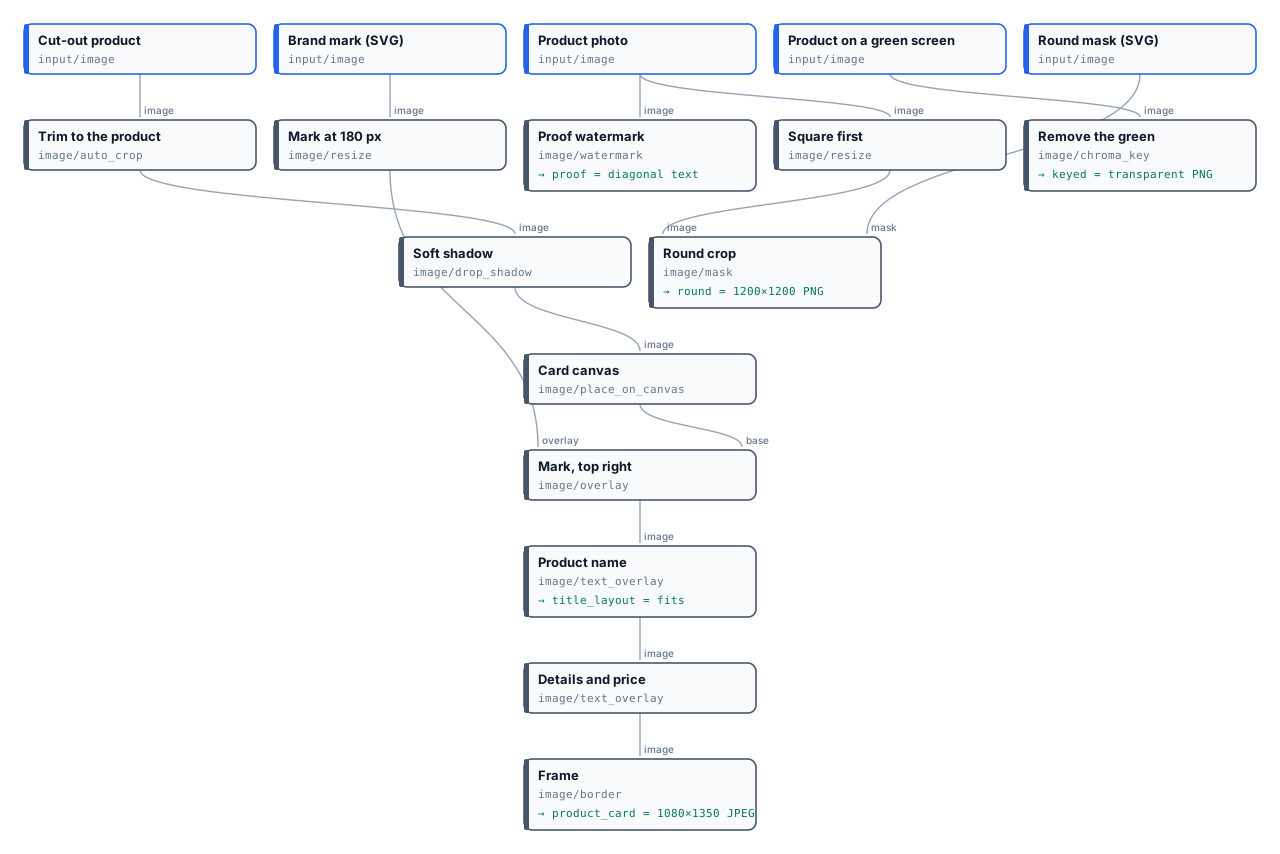
- Product card, 1080×1350: the vase trimmed, given a shadow 24 px right and 32 px down, placed on cream with
380 px free at the bottom; the mark at 180 px, top right, 56 px from the canvas edges; “Peacock Vase” in Playfair
Display Bold and the details in Inter, both anchored bottom-centre above their own safe area; a navy frame of 14 px.
The title’s layout report says 84 px, one line, not shrunk, no safe-area violation
(
result-title-layout.json). - Proof: “PROOF · NOT FOR PUBLICATION”, white at 28 %, repeated diagonally with 140 px between repeats.
- Chroma key: the green goes, tolerance 28 %, a 2 px soft edge.
- Round: the photo squared to 1200×1200 with
fill, then masked by a white circle.
The run costs 0 credits. Give it a longer name and the report shows how the title was laid out — on two lines,
or shrunk towards its minimum size (wasFitted: true); with overflow: fail the node stops instead, before a card
with a text that does not fit is published.
node madoo-install-example.mjs lab-image-compositing --api <your Madoo API URL> --key <key.json> --run --save cardLimits
Section titled “Limits”- Overlay and Blend do not resize their layer.
- Watermark text uses a system font by name; Text on Image is the node for exact fonts.
- Chroma Key has no spill suppression; Apply Mask stretches its mask.
- No layer effects beyond Drop Shadow (no glow, no stroke on images); a text’s outline and shadow are in Text on Image.
Photos: “Vase”, Louis C. Tiffany, 1893–96, and “Teapot”, George E. Ohr, about 1897–1900, The Metropolitan Museum of Art, New York (Open Access, public domain). The brand mark, the green screen and the mask were made for this lab.